
Hello Friends, Today I’m going to show How to Back up our WhatsApp Chat history on Phone, we always need keep our important files and chats backup for later use, Personal chat with friends, Education, Love partners, work and more. I’m using WhatsApp on Android phone for this tutorial.
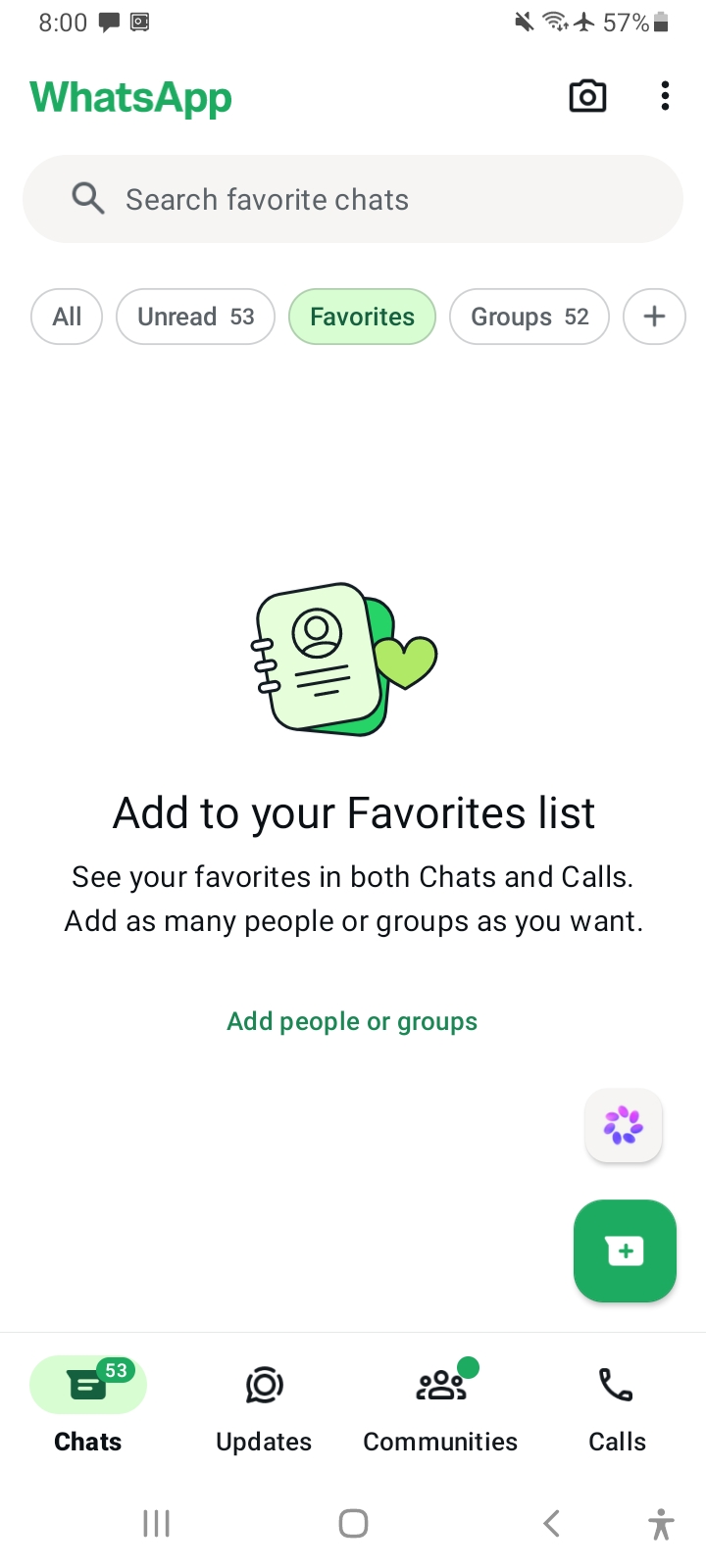
First Open WhatsApp and you can see all your chats. Then click three dots on the right top corner of your screen.
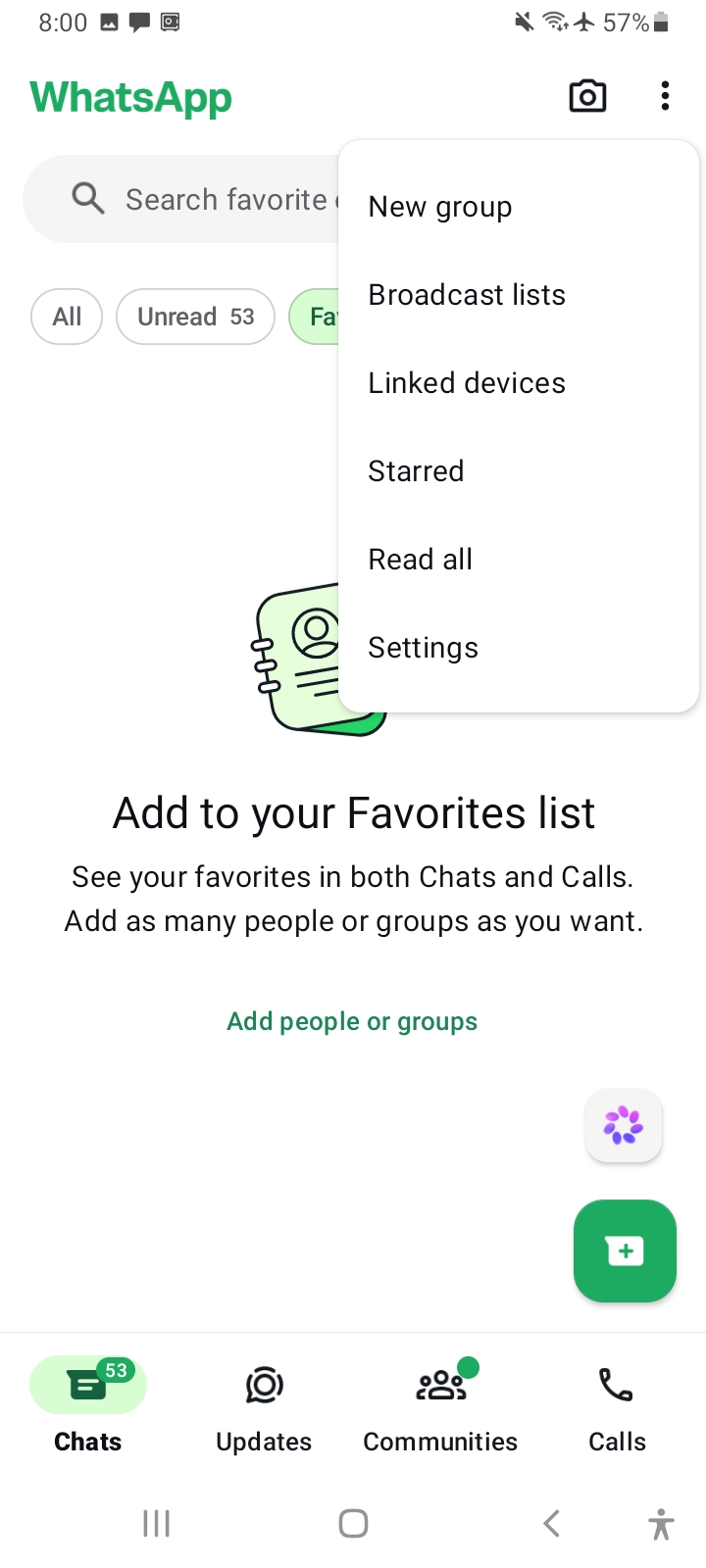
Then menu bar popup you can see settings bottom of the menu bar. Tap on it. Then appear following screen
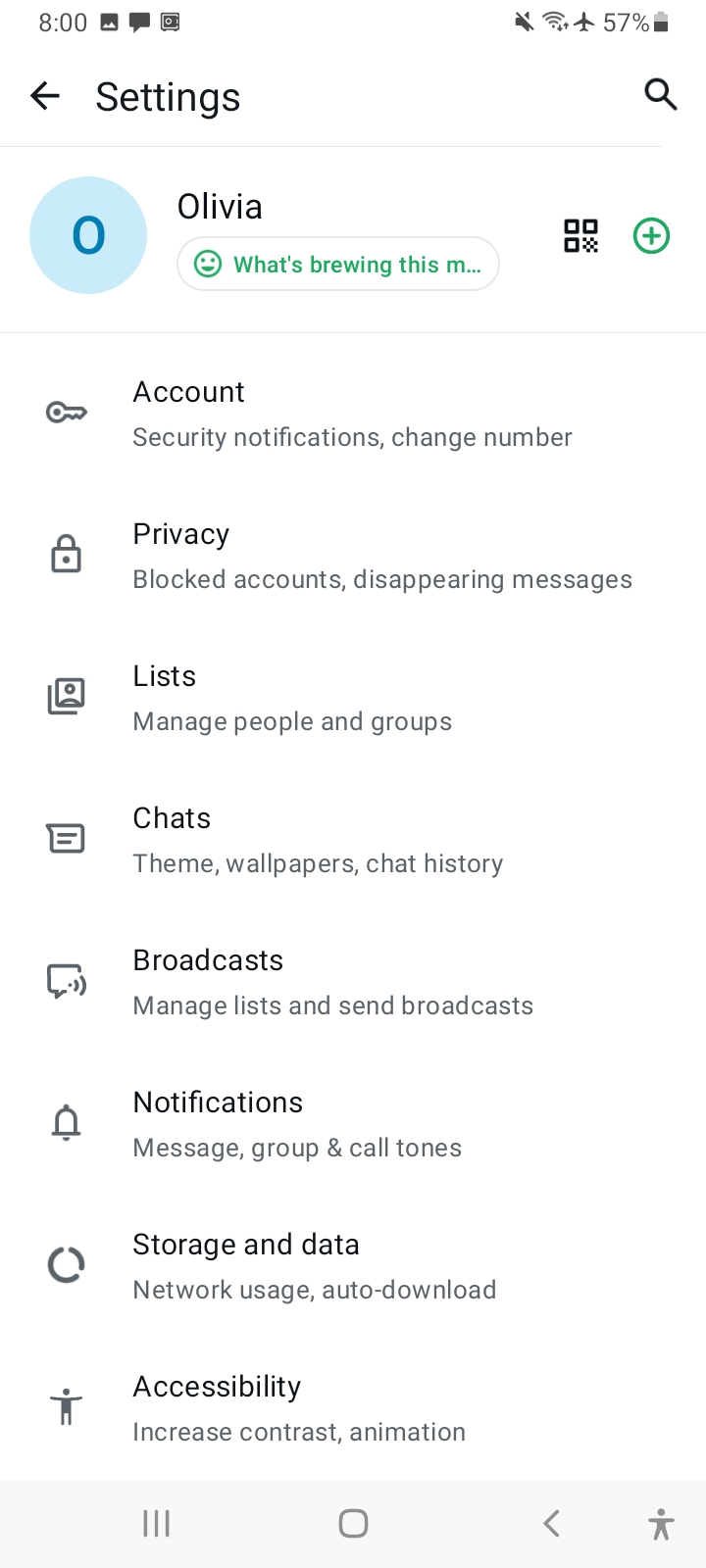
You need to got Chats section, to start change backup configurations
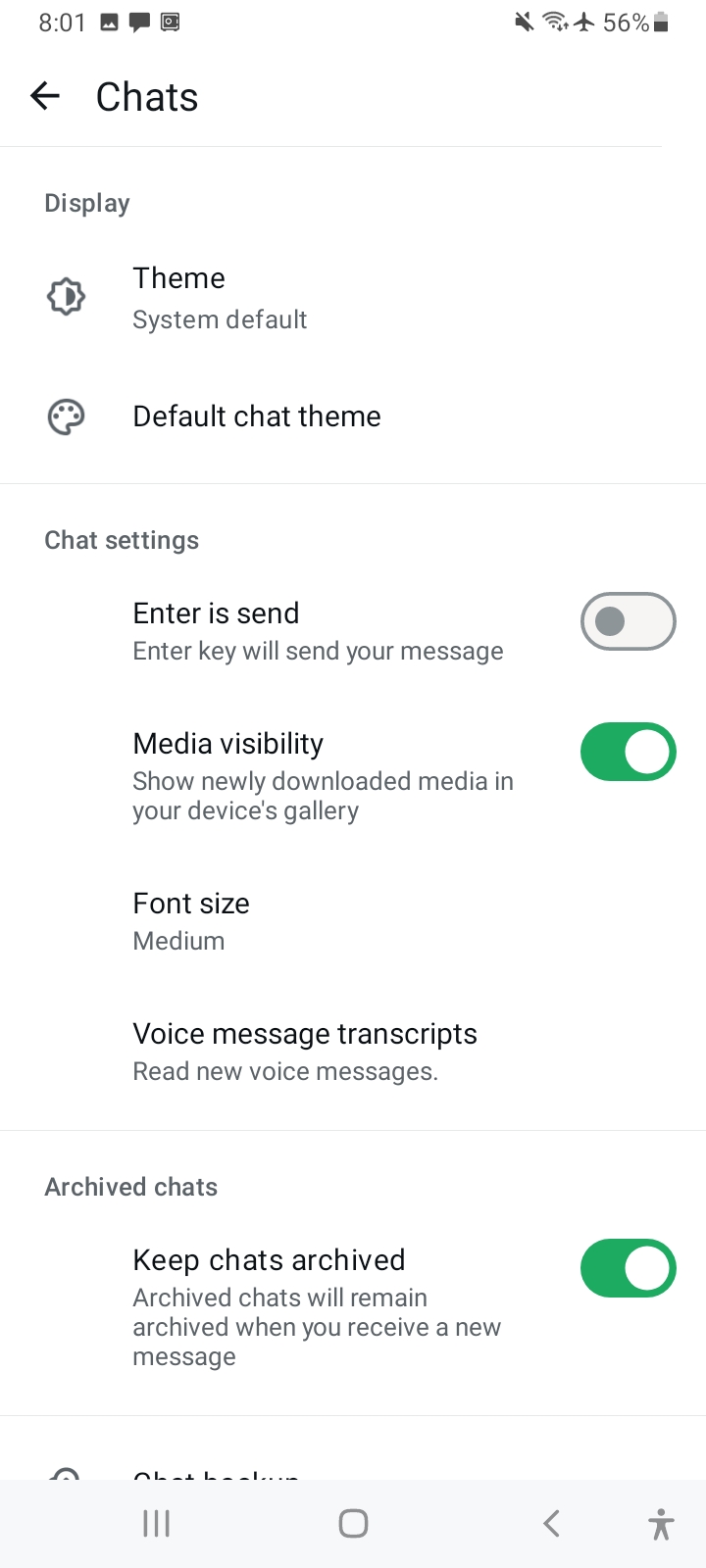
Under chat option you can see Themes, Chats Settings, Archived Chats Settings and Chat Backup very bottom of the settings.
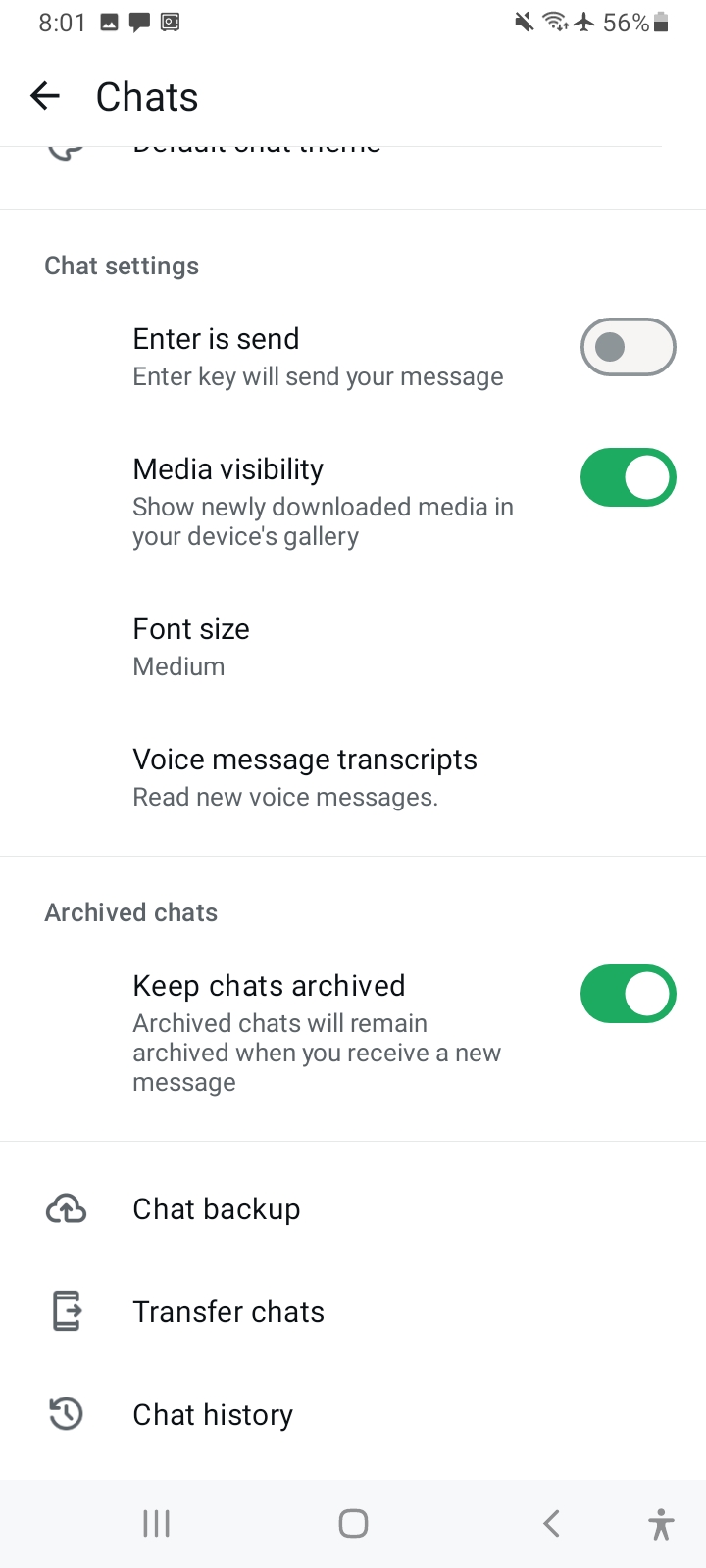
Tap on it then Next screen appears with only related backup options and configurations.
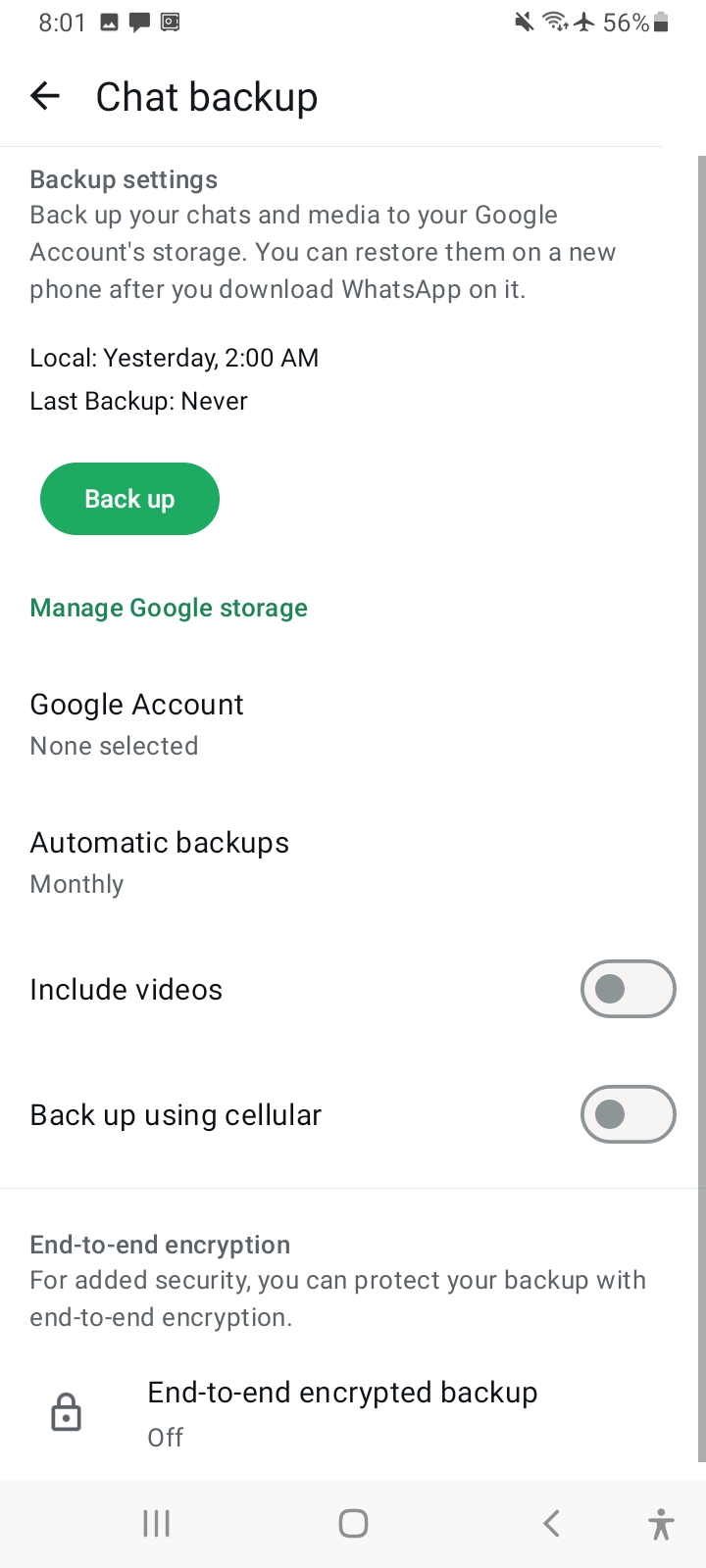
Firs you can see Local: Backup time, WhatsApp normally backup chat on locally, you can see back uptime, its default setting, you don’t need set that setting, auto backup same device locally, Next you can see Last Backup: Never, its mean you didn’t connect any Online backup account, You can only use Google Drive to back up your WhatsApp history online.
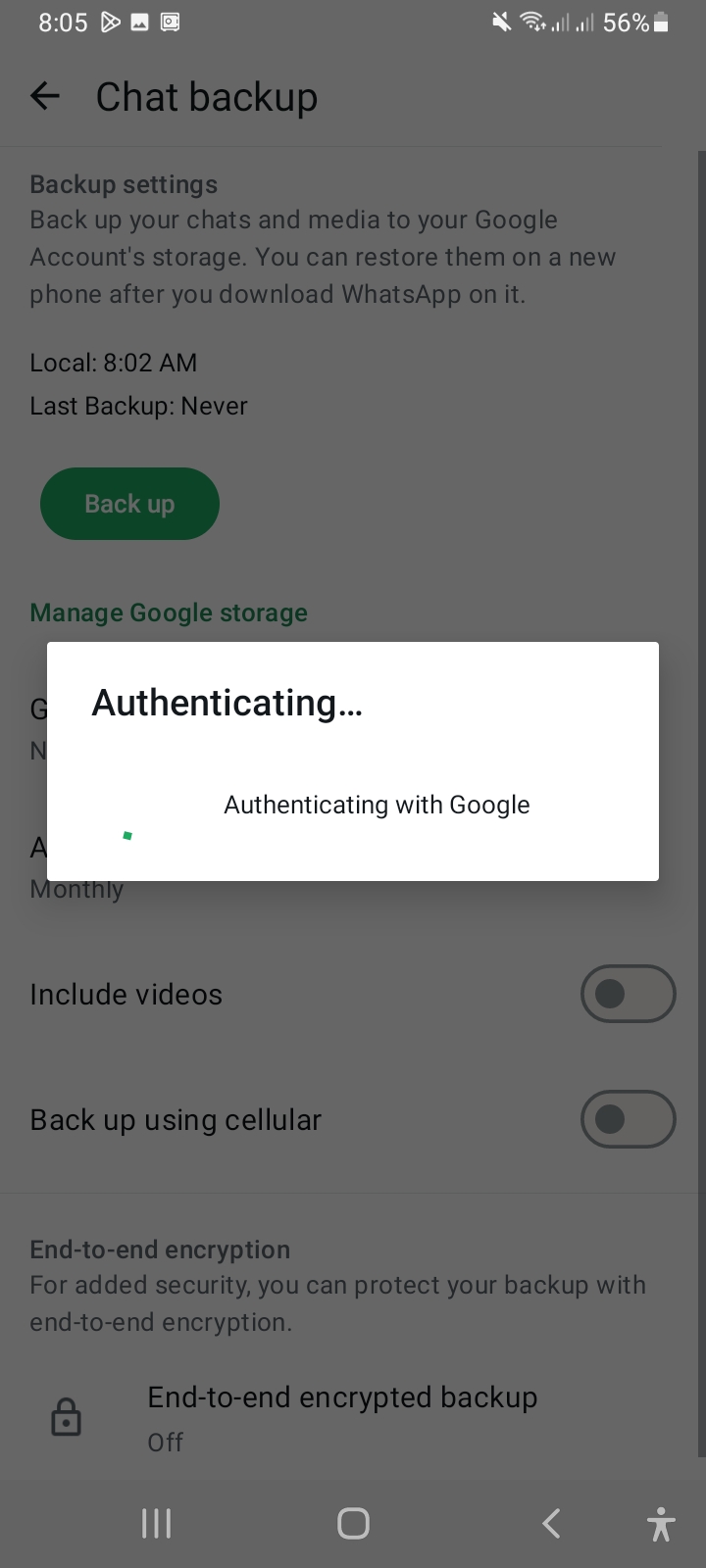
Tap on Google Account option, then it will pop up and ask to connect google connect window.
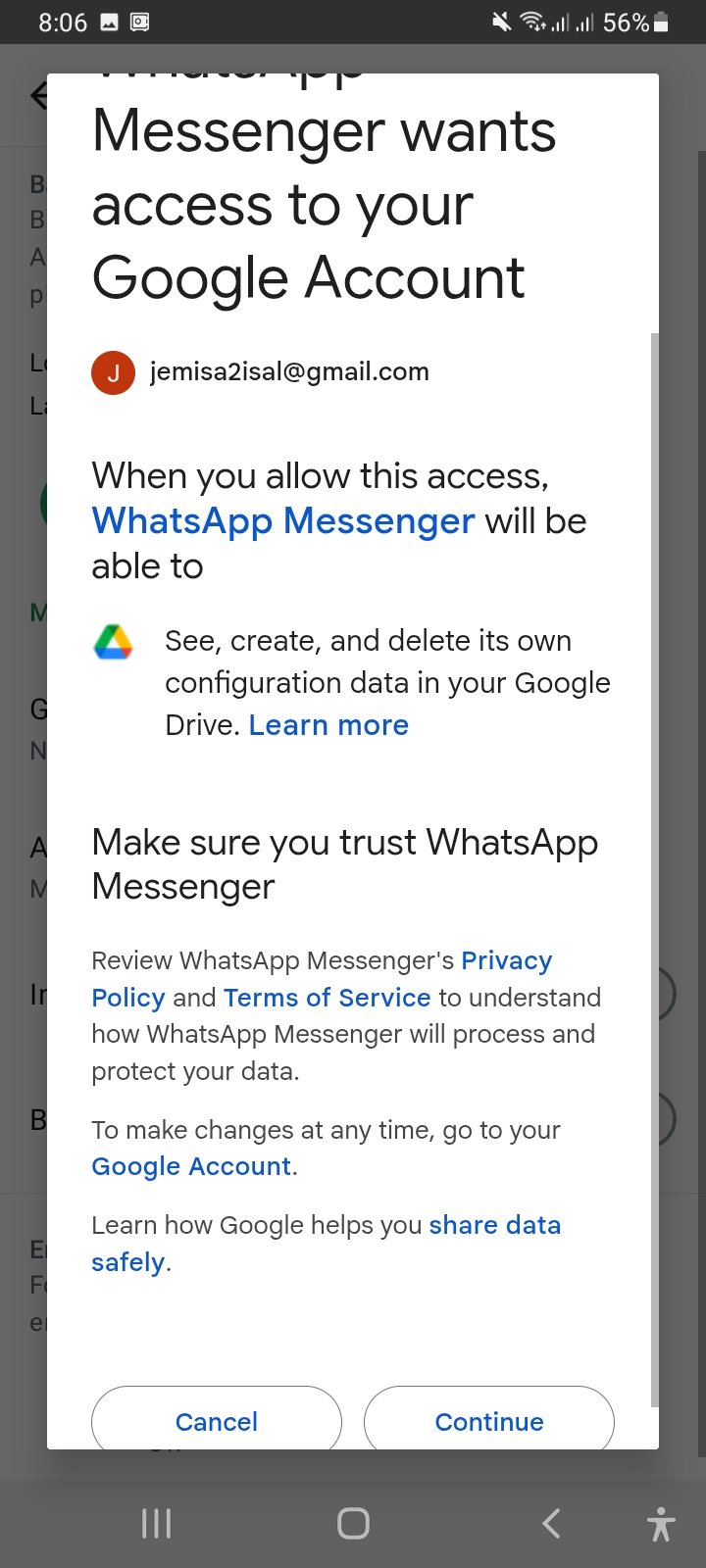
Then WhatsApp ask access to Google Drive permissions, Create, Delete WhatsApp configuration data on drive.
Click on Continue button then will back to WhatsApp, You can see Gmail address under Google account option
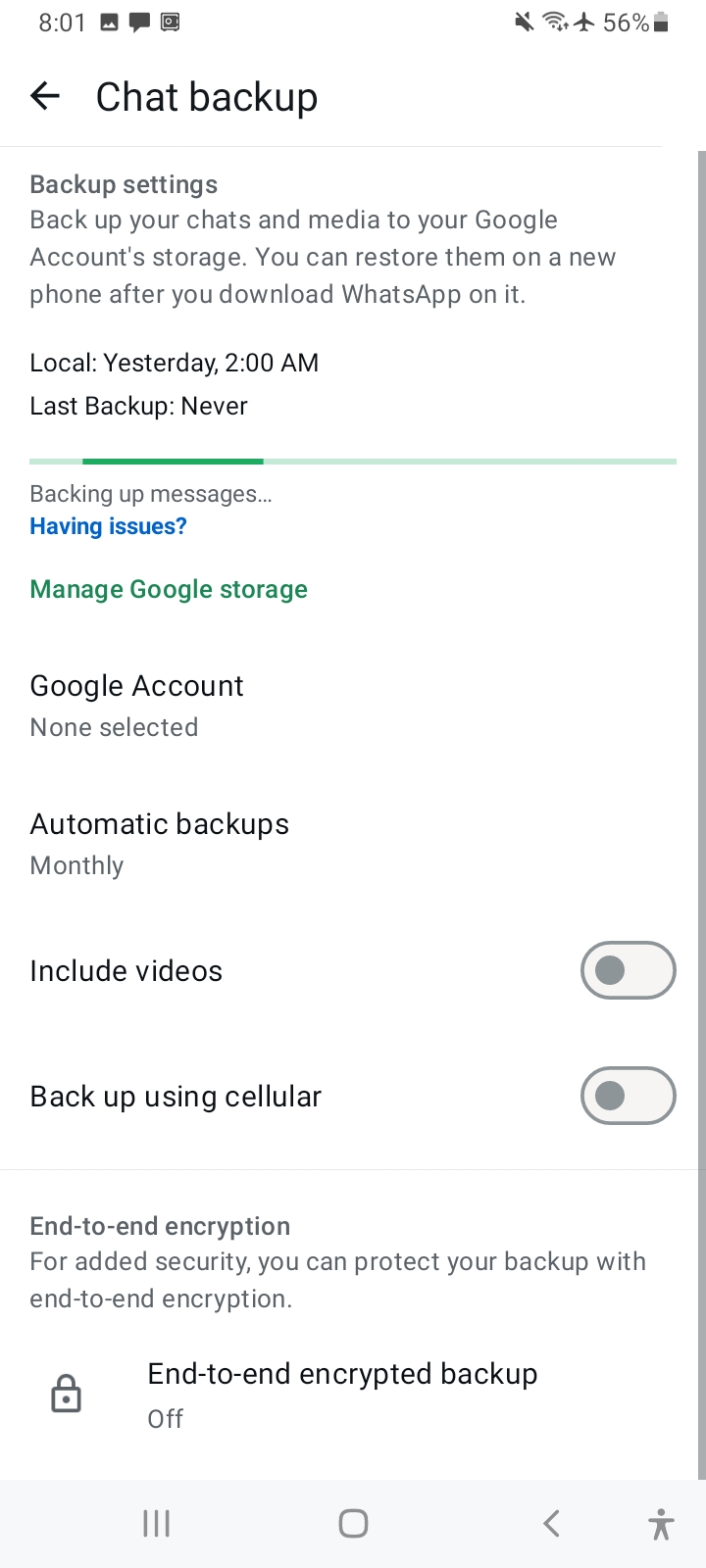
Next option is Automatic Backups
You can select how frequently backup should run, Daily, Weekly, Monthly, Only When I tap “Backup” or off.
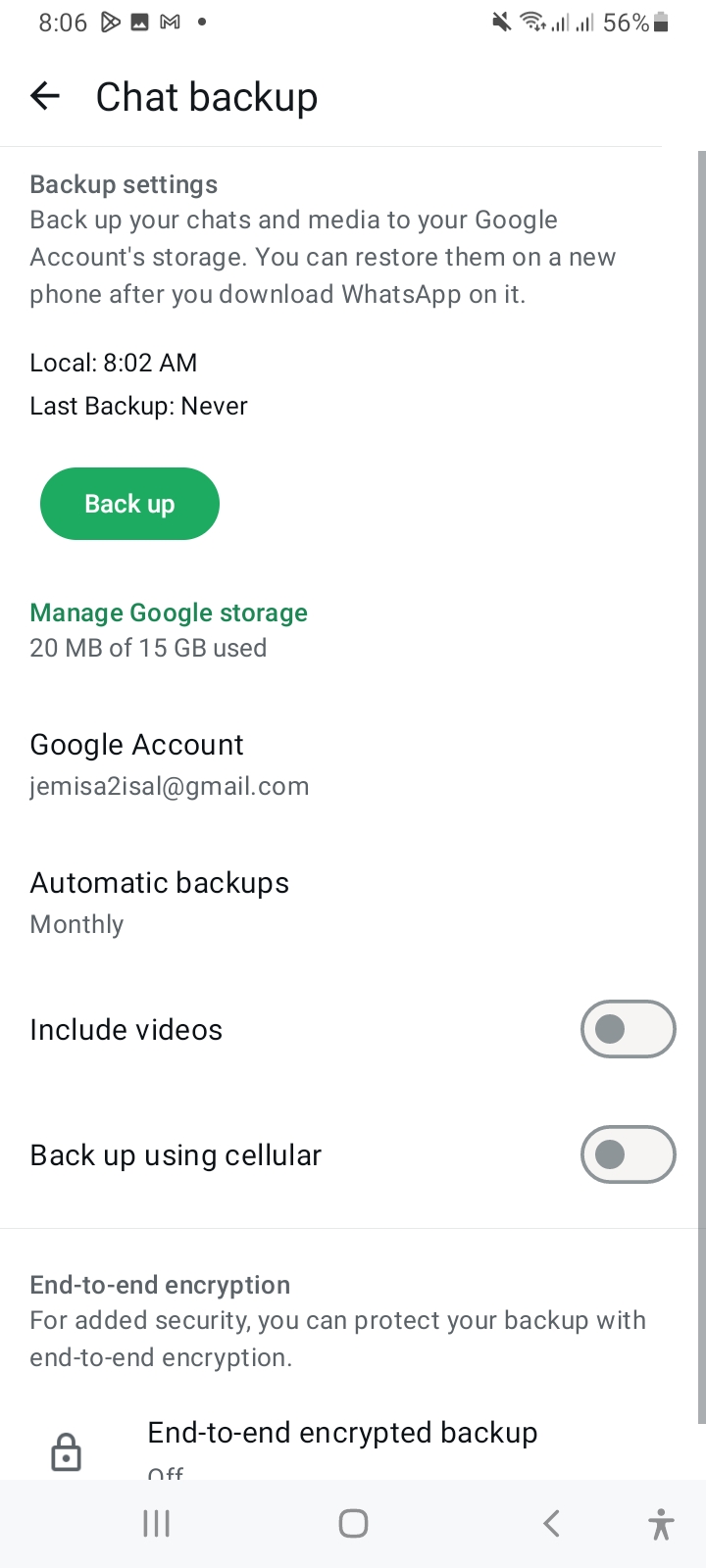
You can select Daily or Weekly, Best option
Next you can turn on Include Videos option, if you need backup your chat video files, but this will take more space from your Google Drive storage and consume more data to upload video files to Google Drive.
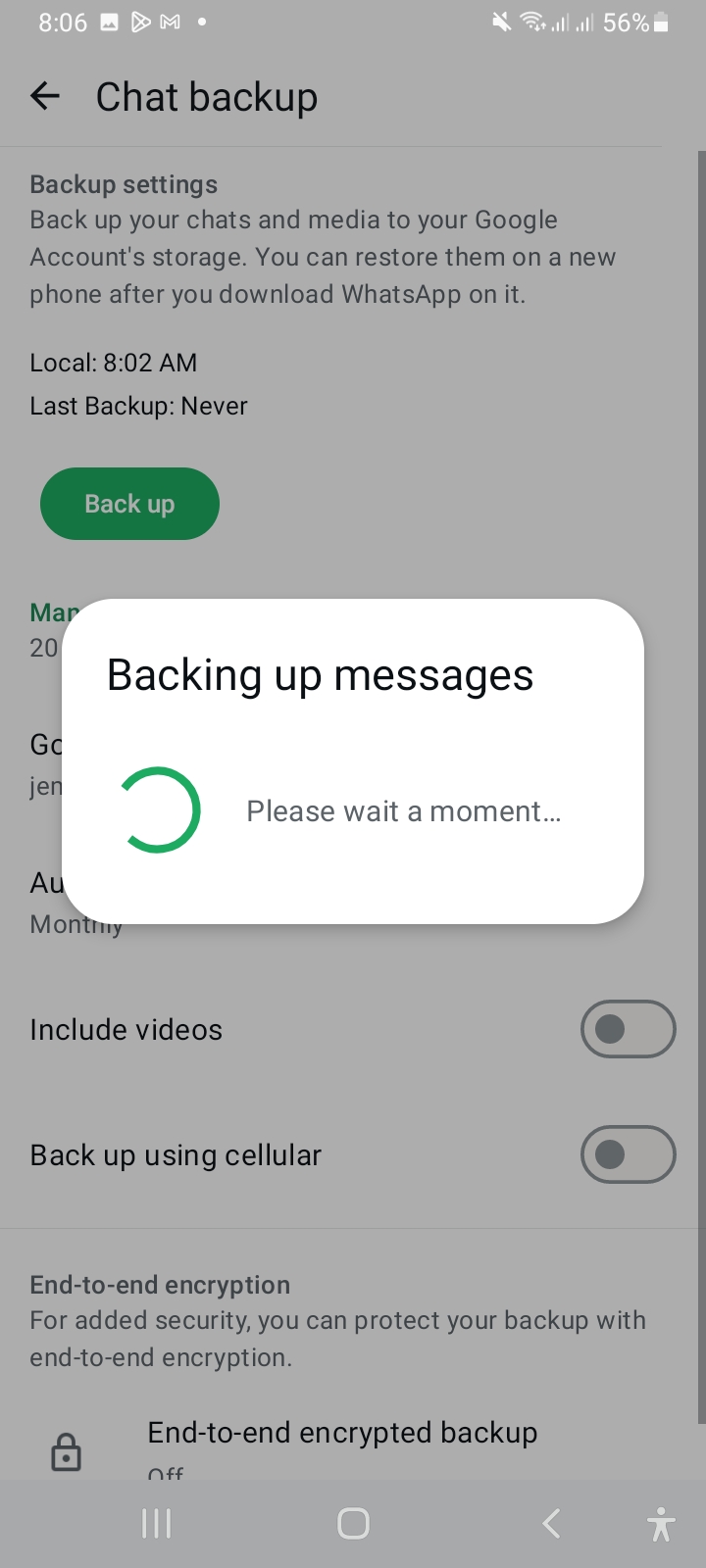
Next Backup using Cellular option, Turn on or off. You use Big Data package you can use Cellular data or Wi-Fi,
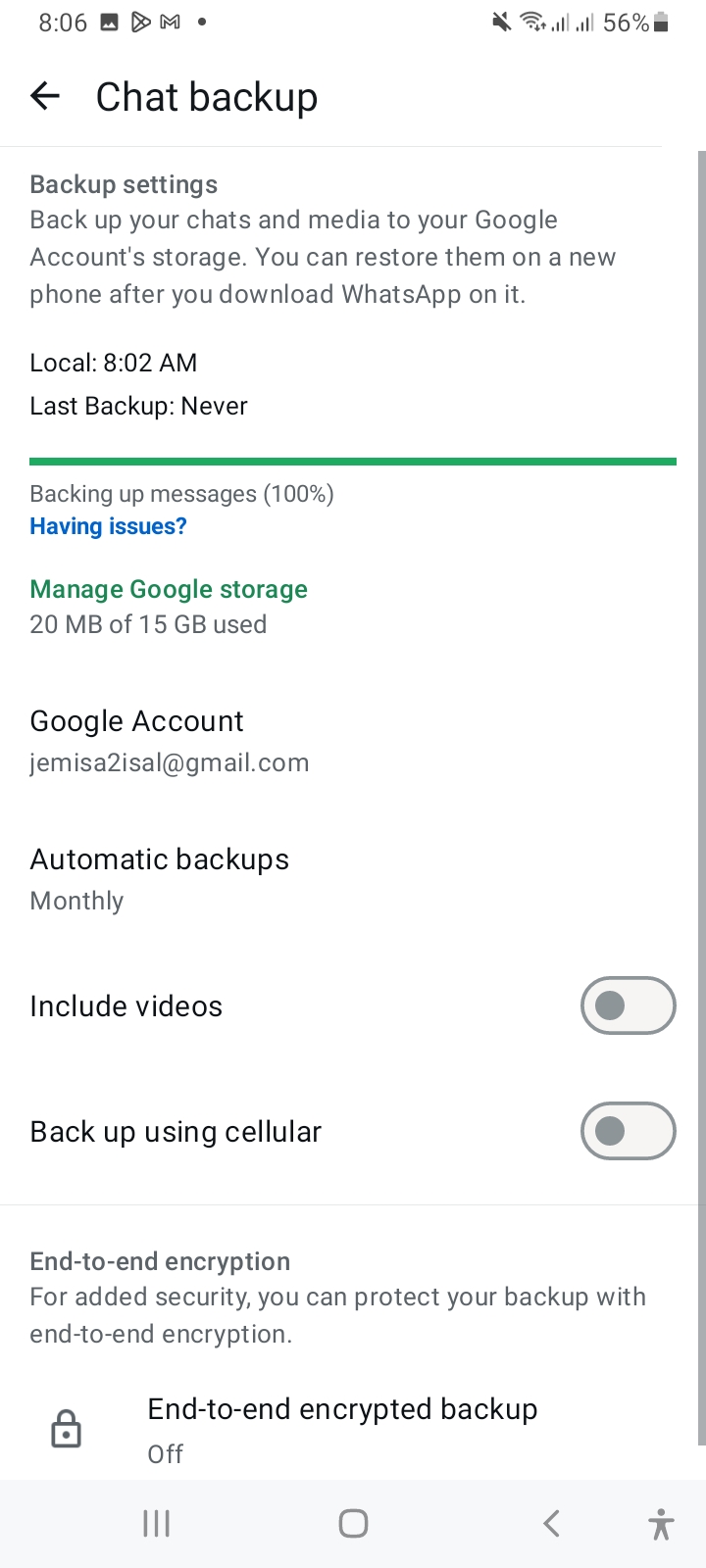
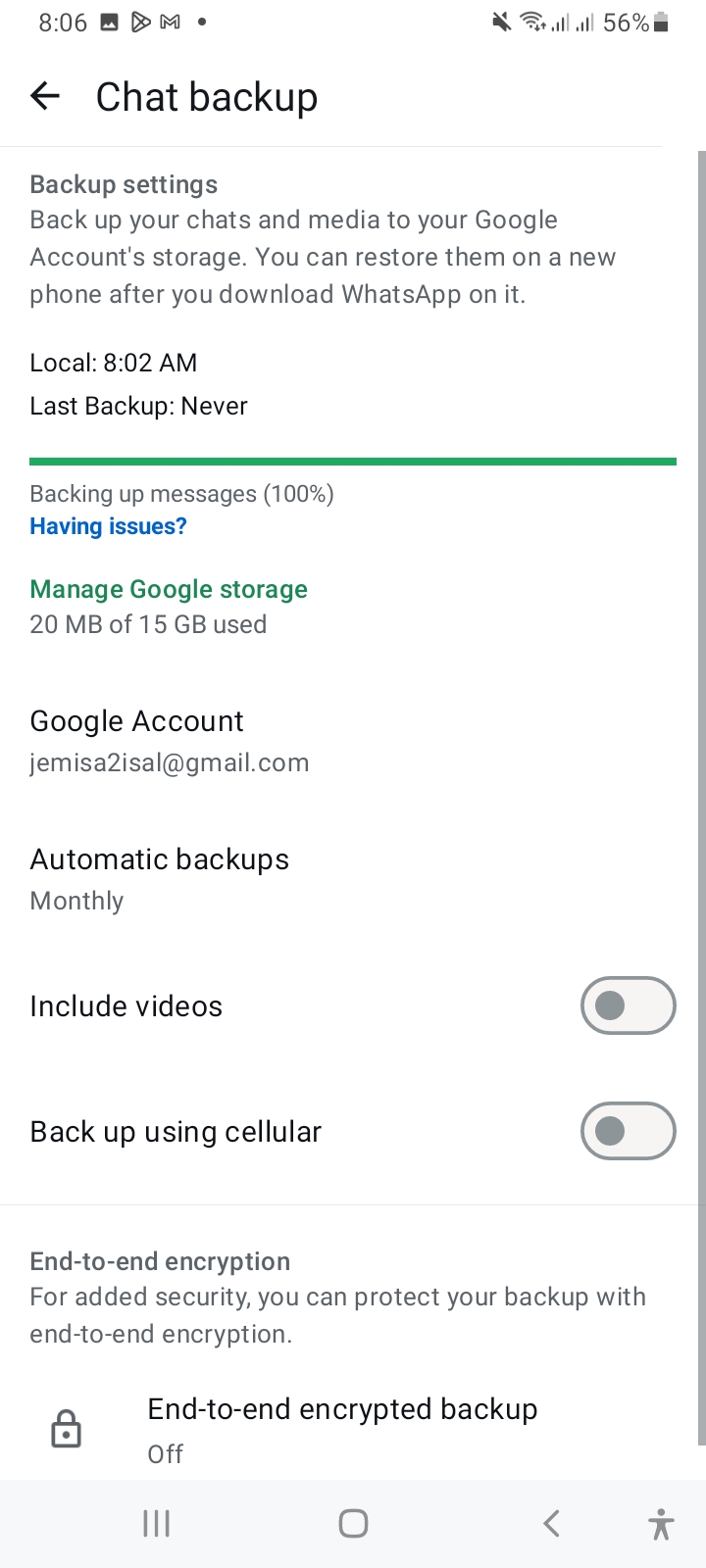
Last option is End to End Encrypted backup, you can secure your backup with End to End Encryption, if you need secure your backup you can Turn it on, or Keep Off, but if you turn on end to end encryption for backup it will add more secure layer, it ask passkey when backup restore. Its secure backup from WhatsApp, Google and hackers, If your phone stolen or hacked, Even Google account, Some mobile phone carriers use Mobile number recycle option, after number disconnected give same number to another person, this option is useful for backup protection, Even you can turn on Two Factor Authentication for your WhatsApp account
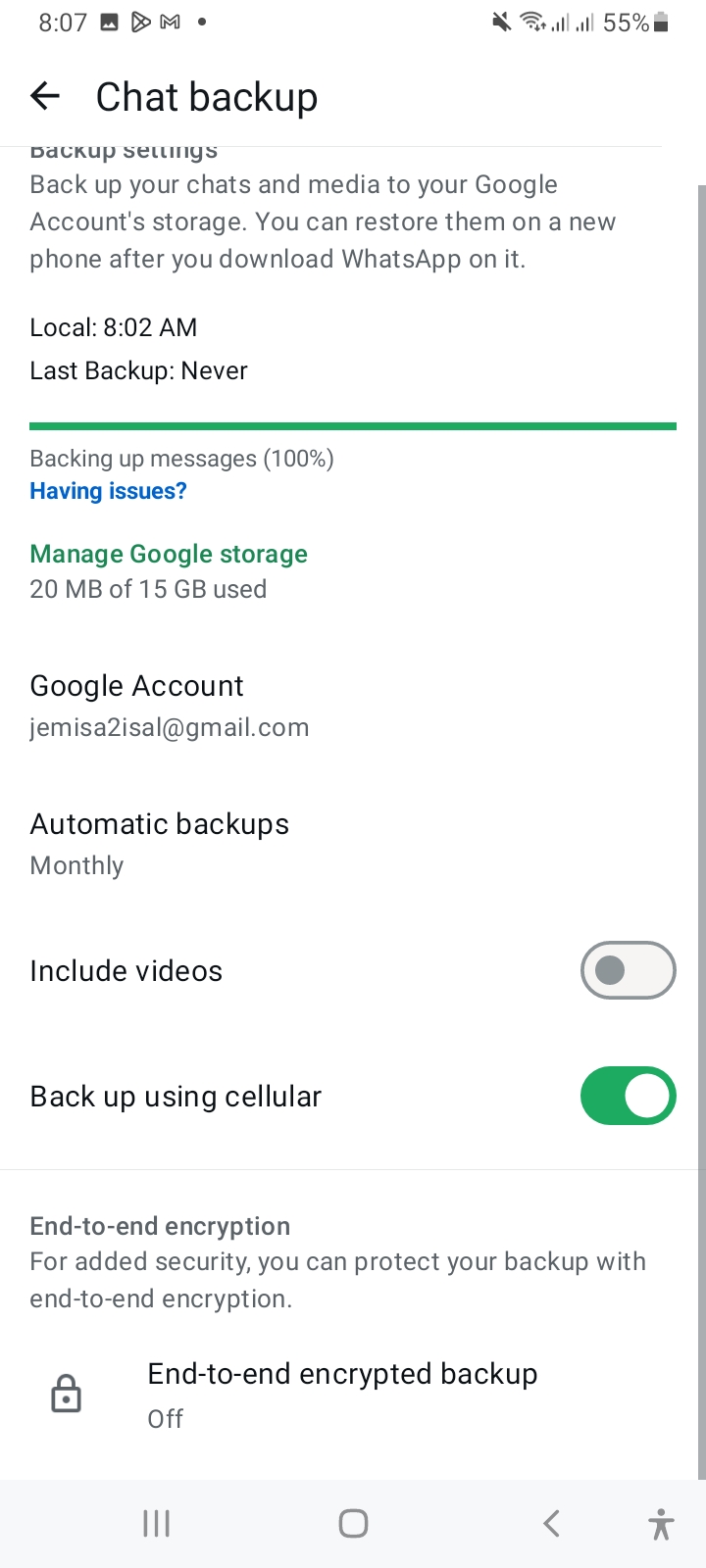
Backing up WhatsApp chat import keeps your memories, work conversions, business related conversions, files, slips, documents etc., with Google drive backup enabled restoring chats on a new phone become quick and easy.
I hope this guide helped you understand everything about WhatsApp backups. If you face any issues or have questions, feel free to leave a comment, I will do my best to help you.